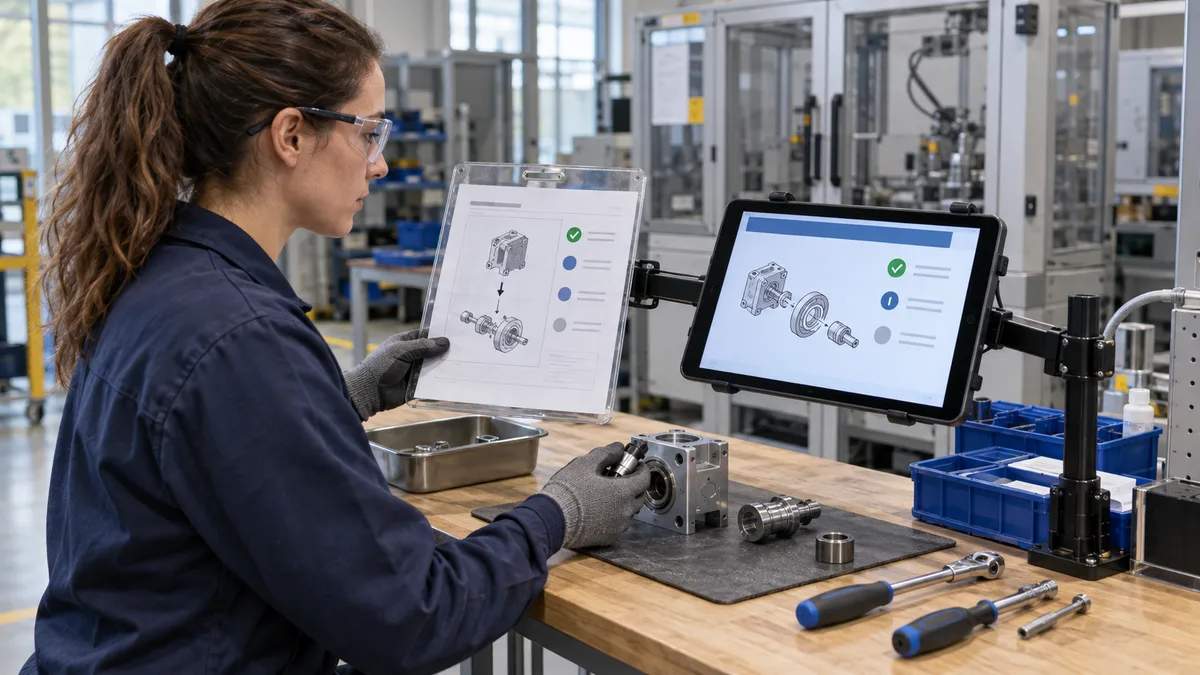
Manufacturing document control software manages the approval, release, access, and history of drawings, work instructions, specifications, and other factory documents. A useful system helps a worker identify the approved document for a particular job and operation, while retaining the evidence of what applied when the work was performed.
For owners, production supervisors, and quality teams at small manufacturers in India and other markets, the buying question is practical: can the right instruction reach the actual workstation, including when a revision changes during a shift? This guide offers a focused evaluation method using your own sample documents.
Decide which document problem you need to solve
Begin with a recurring failure: an old print at a bench, a missing setup sheet, an attachment that opens only on an engineer's computer, or a work instruction whose approval is unclear. Trace one document from preparation to use. Record the people, systems, devices, and printed copies involved.
A shared folder can store files, but your evaluation also needs to test approval status, applicability, access permissions, withdrawal, and history. DELMIAWorks' document control description, for example, includes lifecycle management and circulation of current revisions while retaining older ones. Treat that as a category example and verify the precise behaviour in any product you assess.
Keep related responsibilities clear. BOM and revision control defines the product and which changes apply. Document delivery makes those decisions usable at the point of work. Inspection records capture what was checked. Replacing one with another leaves gaps.
Create a small controlled document register
Start with one product family or assembly area. Select a drawing, setup instruction, inspection plan, and packing instruction that people currently use. Give each a stable document ID, title, owner, revision, approval status, effective scope, file format, and linked job or operation where relevant.
Keep the document ID separate from the uploaded filename. Record the supplier or customer reference when a file originates outside your business, together with the date received and the internal review decision. An incoming email attachment should remain pending until the responsible role accepts it for use.
Ask the system to distinguish a new revision from a duplicate upload, translation, or replacement scan of the same approved document. These events need different review decisions. The register should explain the relationship without relying on someone remembering a filename suffix.
Separate approval from release to the workstation
Use explicit states such as draft, under review, approved for release, released, withdrawn, and archived. Define who prepares, checks, approves, and releases a document. A rejected revision should return with a reason; replacing its file must not preserve an earlier approval as though nothing changed.
Release should record the effective scope and affected users or locations. A notification is only evidence that a message was sent. Where your process requires acknowledgement or instruction, record that separately and decide who resolves outstanding actions before work proceeds.
Document types can extend beyond drawings. Cantier's Document Control Center page lists setup checklists, operating procedures, and packaging instructions among its examples. Choose the smallest set that tests your real handoffs; uploading the entire archive can wait.
Open the revision approved for this job
The newest revision is not automatically applicable to every open job. Your release decision may keep an earlier revision valid for an existing order, while new work uses its replacement. Show the job, operation, document ID, selected revision, and release status together.
A generic QR code at a workstation may open a document family. A job-specific link should additionally resolve that job's approved package. Test both routes. If applicability cannot be determined, show a clear exception and route it to the document owner instead of quietly selecting the latest upload.
Retain the revision reference with the completed job or operation. Reopening historical work must not replace its record with today's document. Link that evidence to the job card so production and quality can reconstruct what the operator was expected to follow.
Control printed copies and downloaded files
Software cannot physically remove an obsolete paper sheet. Decide where controlled prints are permitted, who issues them, and who confirms replacement or withdrawal. Useful print information includes document ID, revision, issue time, applicable job, and a copy reference when your process uses one.
A QR link on a print can help check its status, but the printed drawing remains unchanged after a new release. During the evaluation, keep a superseded sheet deliberately at the test bench. Ask the supervisor to identify it, confirm its applicability, and record the replacement action.
Apply the same thinking to downloaded PDFs and subcontractor attachments. Agree how recipients learn about a change and how unresolved acknowledgements are followed up. Do not count a successful email delivery as proof that a replacement instruction reached every affected workstation.
Test the actual device and connection
Open a detailed drawing on the screen your operator will use. Check zoom, page navigation, orientation, contrast, and whether the revision remains visible. A document thumbnail that looks good on an office monitor may be unusable at an assembly bench. Try the approved gloves or input device under normal site conditions.
For offline access, ask exactly what is cached, when it was last checked, and how withdrawal is handled. Define which work may continue using a controlled cached package and which situations require escalation. The screen should clearly show stale or disconnected status; reconnection should reconcile updates without rewriting past use records.
Where workers use different languages, link each approved translation to its source revision. Test what happens when the source changes before translation review finishes. A convenient translated file should not silently inherit approval for content that has changed.
Run a hypothetical shift-change test
Consider fictional assembly jobs J-101 and J-102 using work instruction WI-17. J-101 is already released against revision B. Engineering approves revision C for J-102 onward. These references are test data, not a customer case study.
- Open J-101 at the bench and confirm that revision B remains visibly authorised for that job.
- Open J-102 and confirm that revision C appears with its release decision and relevant change summary.
- Scan the generic workstation link without selecting a job. Check that the user must resolve applicability before acting on an ambiguous instruction.
- Find an old print for J-102, record its replacement, and hand the workstation to the next shift.
- Disconnect the device, attempt access, and compare the result with the agreed offline rule.
If engineering subsequently withdraws revision B from all work, the earlier permission for J-101 must be reconsidered. Test that exception explicitly: the responsible team needs a hold or disposition decision, not an invisible file replacement.
Use a short acceptance sheet in demonstrations
For each test, record the expected result, observed result, evidence, owner, and unresolved issue. Run these checks with the same sample package in every demonstration:
- Access: an operator can view released instructions but cannot approve or overwrite them.
- Revision change: editing an approved file creates a reviewable change rather than preserving stale approval.
- Applicability: old and new jobs open their explicitly assigned revisions.
- Withdrawal: a withdrawn document is blocked from normal use, with historical access clearly identified.
- Print control: the team can identify and resolve a superseded test copy.
- Connection loss: offline behaviour matches the agreed rule and exposes the last synchronisation status.
- History and export: authorised staff can retrieve files, approvals, applicability, and revision references in a usable export.
Also ask the supplier to demonstrate a recovery from a failed upload and explain backup restoration. Mark features as observed, proposed, or unavailable. A demonstration promise should not become an acceptance result until the required behaviour is shown.
Prepare a brief before expanding
Your first brief should contain the document register, approval roles, job applicability rules, workstation devices, print process, offline policy, and completed acceptance sheet. Review unresolved document-access incidents with production and quality before adding more areas. Measure whether staff can retrieve and explain the correct instruction, not simply how many files were uploaded.
To discuss a tailored workflow, share this brief with Ploqy Technologies through the manufacturing software development service. Agree the required integrations and acceptance tests as part of the project scope.
Make approved instructions easier to use
Discuss your drawings, release process, workstation access, and document handoffs with Ploqy Technologies.
Continue with a related guide
- Custom ERP vs Ready-Made ERP for Small Manufacturers
- How to Choose Manufacturing Software Without Buying Too Much
- Manufacturing CRM Software: An Enquiry-to-RFQ Pilot
Manufacturing software servicesManufacturing website servicesDownload the project checklist
Published by Ploqy Technologies. About our guides and editorial process.